
IPTV Setup Tutorial | How to Install IPTV on Any Device
This IPTV tutorial helps users in Germany, Austria, and Switzerland easily install and configure IPTV on all supported devices..
How to setup IPTV on Fire TV Stick
1: From the home screen of your device, hover over the Find option.
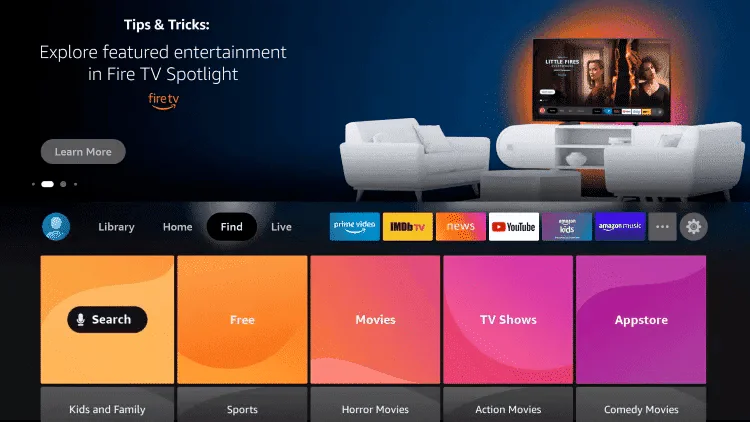
2. Click Search.
3. Search for and select Downloader.
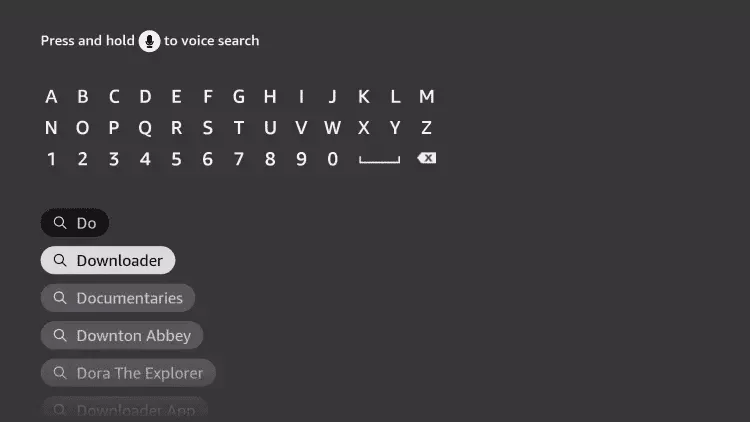
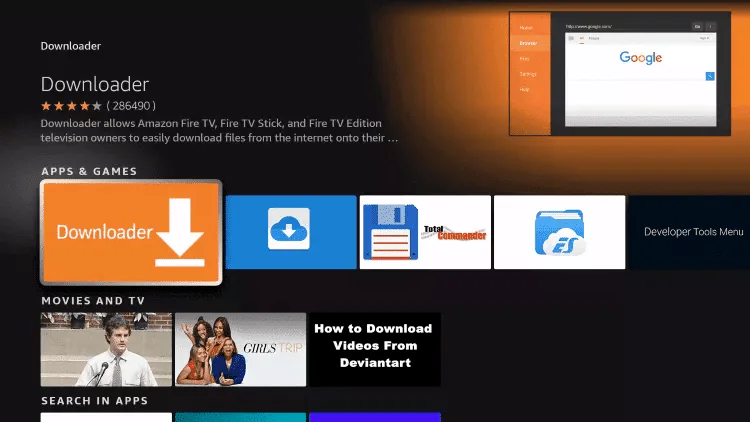
4. Choose the Downloader app.
5. Click Download.
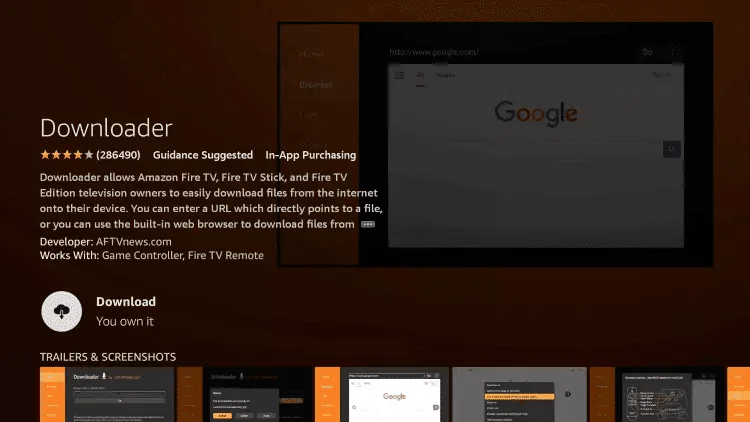
6. Once the app finishes installing click Open.
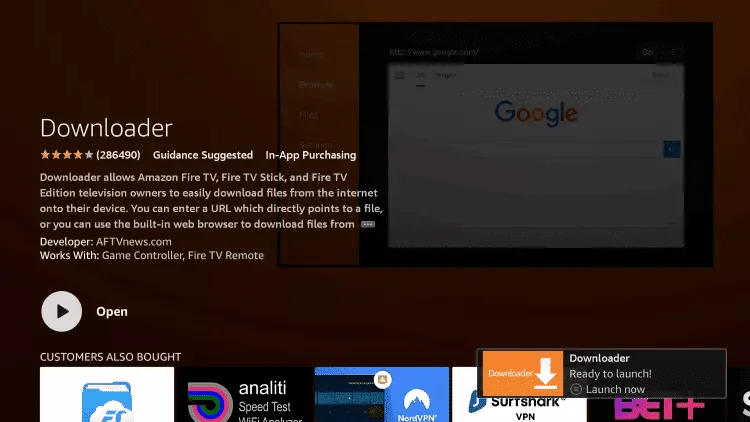
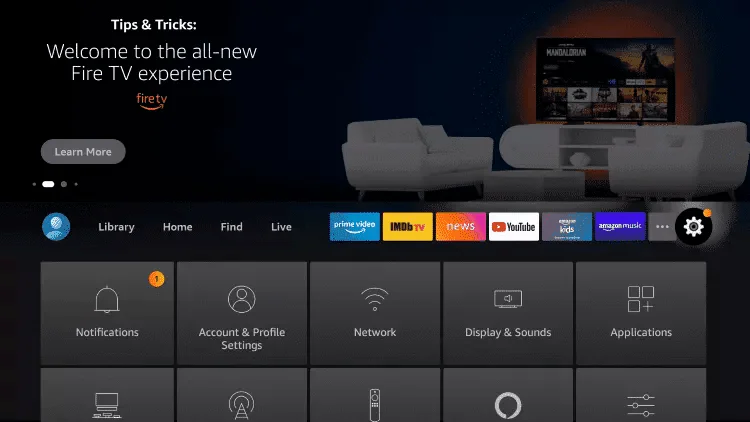
7. Return to the home screen and open Settings.
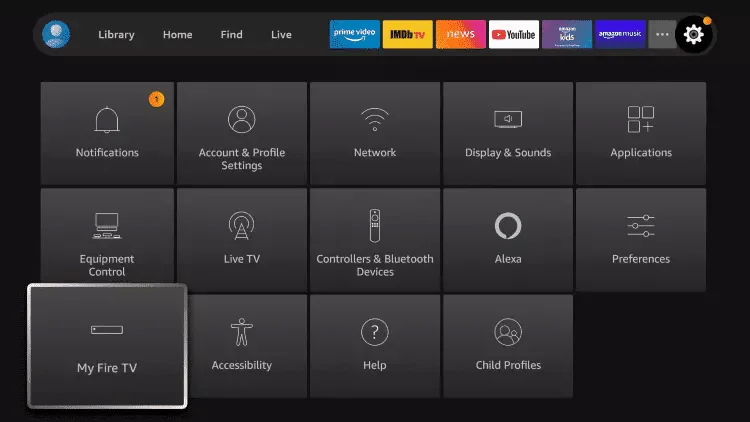
8. Click My Fire TV.
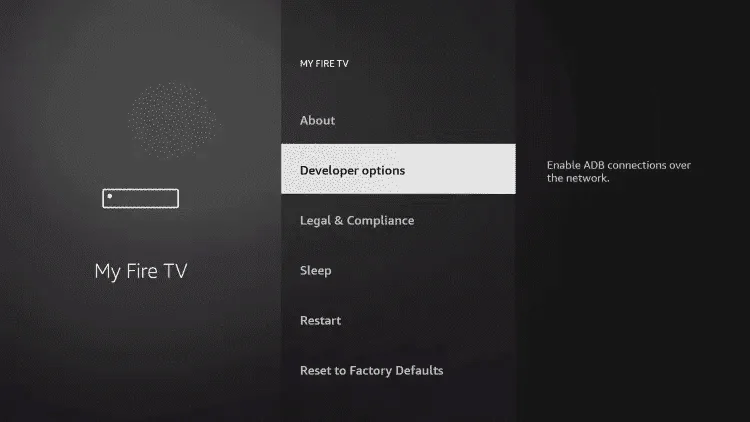
9. Choose Developer options.
10. Click Install unknown apps.
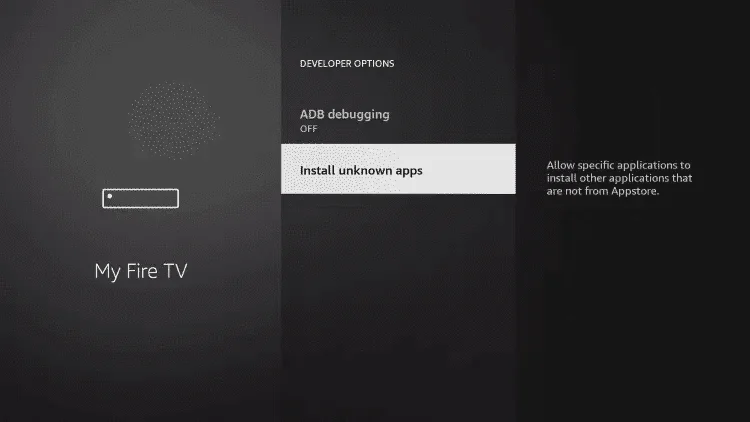
11. Find the Downloader app and click it.
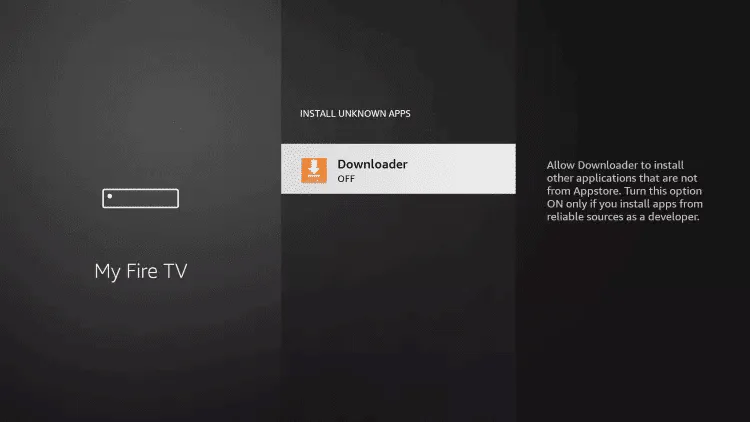
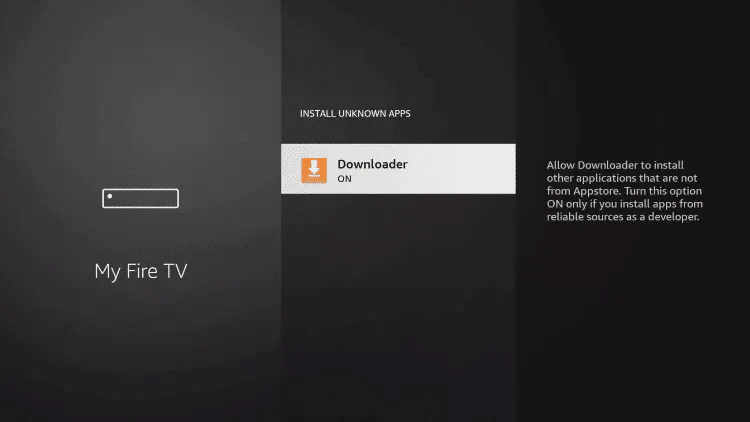
12. This will turn Unknown Sources to On for the Downloader app. This will enable side-loading on your device.
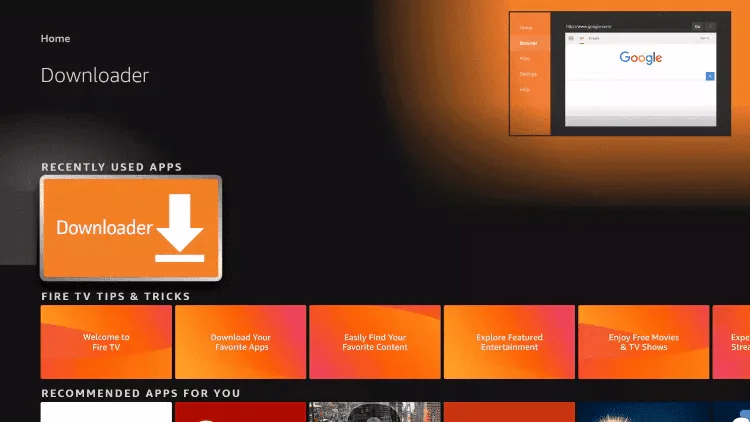
13. Launch Downloader.
14. Click Allow.
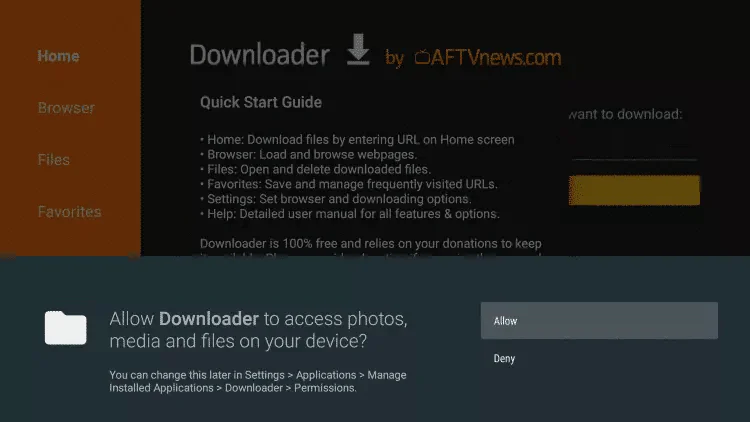
15. Click OK.
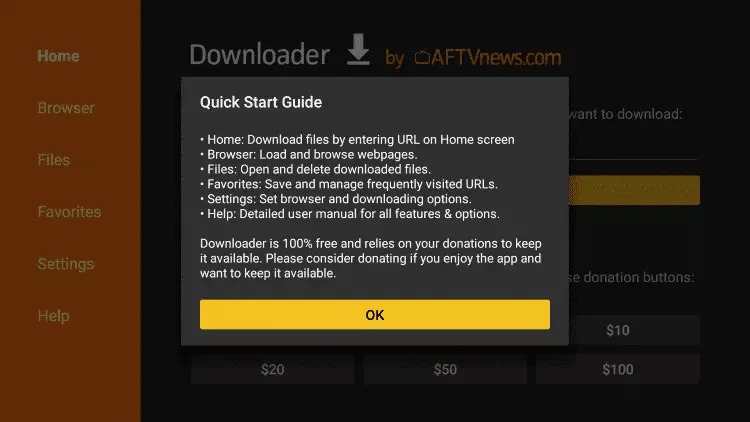
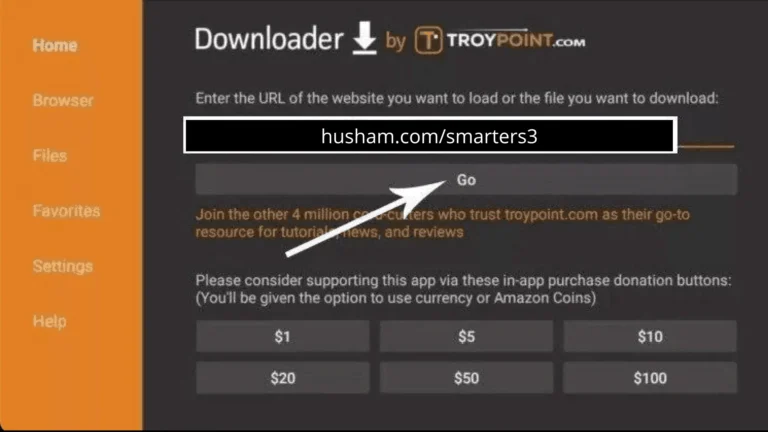
16. Type the following URL exactly as shown here: https://www.iptvsmarters.com/smarters.apk
and click Go.
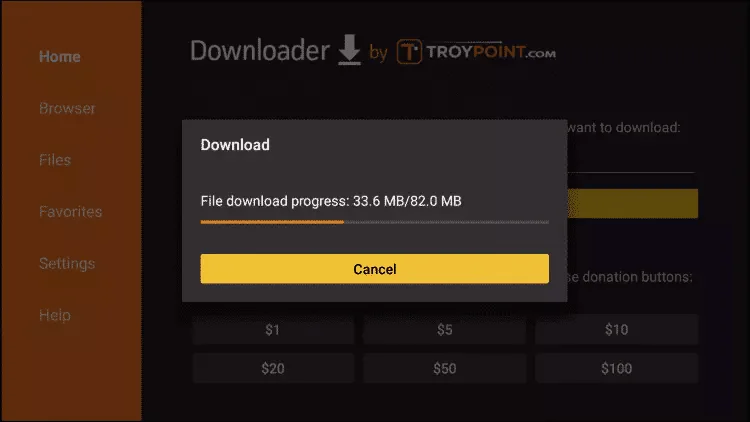
17. Wait for file to download.
18. Click Install.
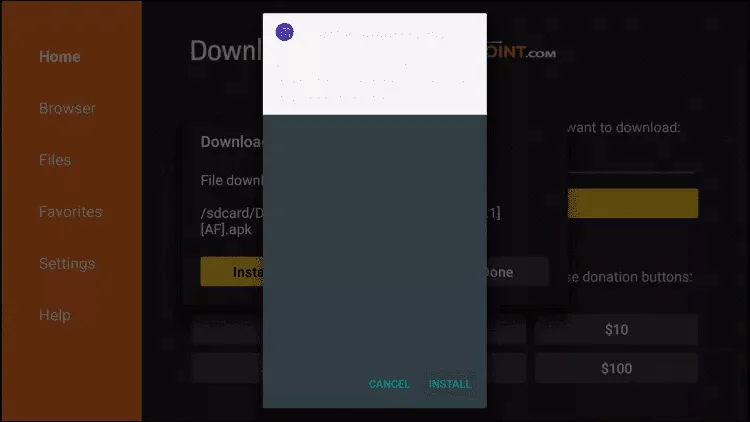
19. Click Done.
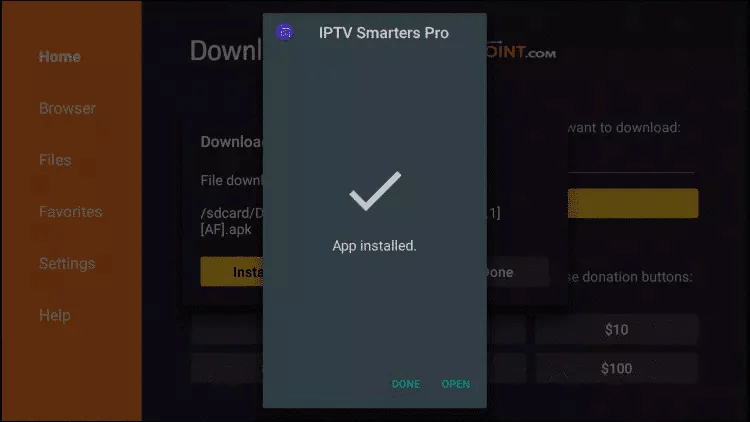
20. Open IPTV smarters then select Login with Xtream codes api.
21. Enter the login details that we sent you via Whatsapp or Email or Chat
How to setup IPTV on Android with Televizo
Step 1:
Dowload the Televizo App at: https://play.google.com/store/apps/details?id=com.ottplay.ottplay&hl=de
Step 2:
Open the app once downloaded and Enter the M3U Link that we have provided you after you get a subscription with us.
CONGRATULATIONS!
What ? so easy ? Yes! You can use so many different Apps to watch IPTV. You dont like Televizo ? No Problem. Just watch for another Apps until you find you favourite one.
How to setup IPTV on iOS with IPTV STREAMER PRO
Step 1:
Dowload the IPTV App at: https://apps.apple.com/de/app/iptv-streamer-pro/id1137962801
Step 2:
Open the app once downloaded and Enter the M3U Link that we have provided you after you get a subscription with us.
CONGRATULATIONS!
What ? so easy ? Yes! You can use so many different Apps to watch IPTV. You dont like IPTV STREAMER PRO ? No Problem. Just watch for another Apps until you find you favourite one.
- Android TV / Google TV / Fire TV:
- TiviMate: Widely considered the “gold standard” for Android-based TVs. It offers a professional, cable-box-like interface and advanced EPG (Electronic Program Guide) management.
- IPTV Smarters Pro: One of the most versatile apps, supporting Live TV, VOD (Video on Demand), and Series with a clean layout.
- OTT Navigator: Highly customizable and lightweight, making it ideal for older Smart TVs or streaming sticks.
- IPTV Smart Player Pro: A rising favorite in 2026, known for its smooth 4K playback and user-friendly setup.
- Samsung (Tizen OS) & LG (webOS):
- Smart IPTV (SIPTV): A long-standing veteran app. You upload your playlist via their website using your TV’s MAC address.
- IBO Player / ibPlayer Pro: Very popular on LG and Samsung stores; it features a fast UI and supports multiple playlists. Usually requires a small one-time activation fee after a trial.
- Nanomid Player: Known for its security features and support for high-quality streaming formats on major TV brands.
- Internet Speed: To ensure buffer-free streaming, you should have at least 16 Mbps for Full HD and 50 Mbps for 4K/UHD content.
- Security & Privacy: Many users utilize a VPN (such as NordVPN or ExpressVPN) to prevent ISP throttling and to ensure privacy while streaming.
- EPG Support: Most modern apps now automatically fetch the Program Guide if your provider includes the EPG URL in the playlist.
- Zattoo / Waipu.tv: Best for European/German live TV.
- YouTube TV / Hulu + Live TV: Best for US-based channels.
- Sling TV: A flexible option for international and sports channels.
Compatibility: Compatible With All Devices
– HOW IT WORKS
Step 1 : Search for the IPTV Smarters Pro to install, or use this link to download the apk: https://www.iptvsmarters.com/smarters.apk
Step 2: Log in the Application with your subscription details i.e. Username, Password, Portal URL
For Samsung Smart TV
Step 1 : Press the Smart Hub button from your remote.
Step 2 : Search for the IPTV Smarters Pro to install.
Step 3 : Log in the Application with your subscription details i.e. Username, Password, Portal URL.
For LG Smart TV
Step 1 : Press the Home button on the remote & Go to LG Content Store.
Step 2 : Search for the IPTV Smarters Pro to install.
Step 3 : Log in the Application with your subscription details i.e. Username, Password, Portal URL.
You dont like the listed Apps ? No Problem. Just watch for another Apps until you find you favourite one.
- IPTV Smarters Pro (Best for Features): A popular choice that provides a balance between functionality and a modern interface.
- Features: Supports 4K streaming, multi-screen viewing, parental controls, and integrated EPG.
- Note: Native versions are available in the Microsoft Store, though some users report occasional glitches with mouse controls compared to the mobile versions.
- TiviMate (Best User Interface): Often cited as having the most professional “cable-box” aesthetic.
- Usage: While primarily built for Android TV, many users in 2026 run it on Windows using an Android emulator (like BlueStacks) or specialized desktop wrappers for the best experience.
- Features: Exceptional EPG management, recording, and channel grouping.
- OTT Navigator (Best for Power Users): Optimized for Windows with a clean UI designed for mouse and keyboard use.
- Features: Includes Picture-in-Picture (PiP) mode for multitasking, detailed metadata for VOD, and a 7-day free trial for its premium features.
- Kodi (Best for Customization): A powerful media center that can be transformed into an IPTV hub using the “PVR IPTV Simple Client” add-on.
- Pros: Completely customizable with skins and third-party add-ons.
- Cons: Steeper learning curve for initial setup.
| Player |
|---|
| Price | Best For | Key Feature | |
|---|---|---|---|
| IPTV Smarters Pro | Free/Premium | Features | Multi-screen & 4K |
| TiviMate | Premium | Aesthetics | Superior EPG & UI |
| OTT Navigator | Free/Premium | Multitasking | Picture-in-Picture (PiP) |
| IPTVnator | Free | Open Source | Cross-platform/M3U8 |
This tutorial will guide you through a simple and effective steps of installation your Mag (250/254/256…).
Step 1: When the box is being loaded the main portal screen appears. After that click on “settings”, and press the remote button “SETUP/SET”.
Step 2: Then press on “System settings” and click on “Servers”.
Step 3: Click on ‘Servers’
Step 4: Choose and Press option ‘Portals’
Step 5: In the ‘Portal 1 name’ line enter a portal name and in the ‘Portal 1 URL’ enter portal URL.
Therefore for the activation of our IPTV subscription on your MAG box, you must send us with your order the MAC address found on the label behind the box, the activation is done entirely remotely, just after activation, we will send you a URL link that you have to put on your PORTAL, as in the photo below:
Step 6 – Finally when you complete select and click ‘OK’ to save the changes.
Step 7 – Click ‘EXIT’ on the remote control after the settings are being saved.
Step 8 – Consequently you have to reboot the box. Choose the option ‘OK’ to make the